


Dickson Support Database
Single Sign On
This article applies to these plans: #
Basic #
Standard #
Compliant #
Requirements #
- All users must have a first name, surname and email address as attributes within your user management portal.
- Users accounts must be created in DicksonOne first.
- Must have a subscription plan with SSO enabled
- IDP supports SAML 2.0
- A subdomain configured in DicksonOne – Reach out to Dickson Support.
How to Configure Single Sign On (SSO) #
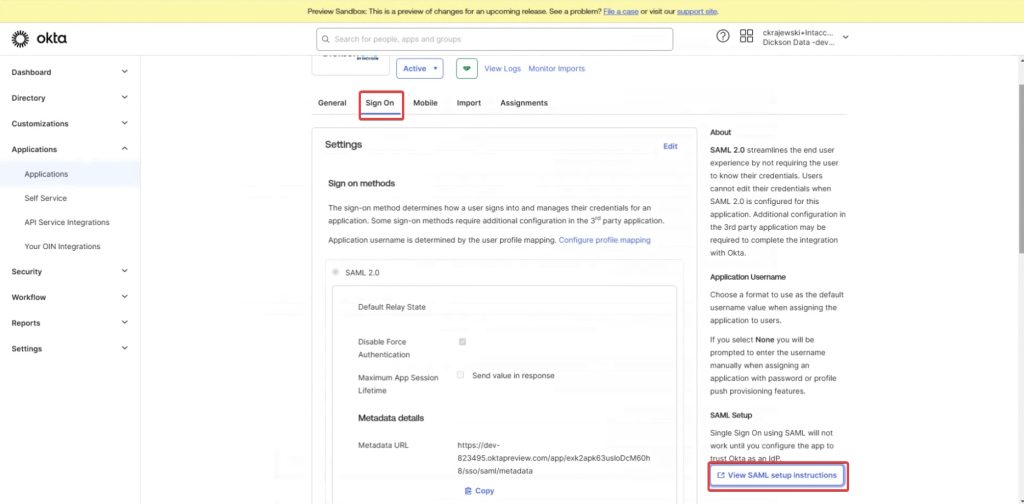
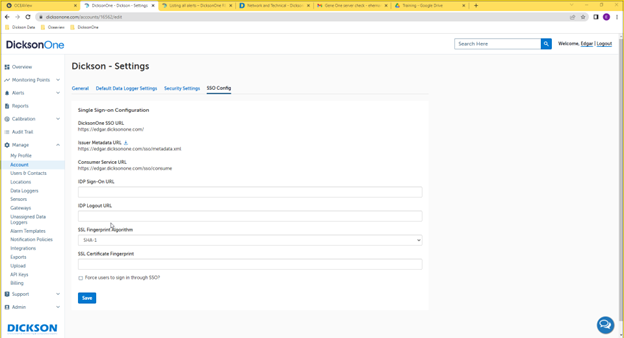
Navigate to Manage > Account > SSO Config
Azure/Entra Set up Instructions #
Click Here for set up instructions in Entra for DicksonOne.
ADFS Set up Instructions #
Click Here for set up instructions for ADFS
FAQs #
What happens with user logins when SSO is forced?
- Users will have to login using their Active Directory (AD) credentials
- If the user has an email and password in DicksonOne, the user will not be able to login in and will see a message displayed Password-based login has been disabled for your account. Please sign in using your Single Sign-On identity provider.
- The user will have to click on Single Sign-On to be rerouted to their company’s DicksonOne SSO login page
What happens with security when SSO is forced?
- Security settings will be managed by your company’s group policy
- User Time out in account settings will be the only security option available
Note
Learn more on how to Deploy and Configure AD FS
Okta Set Up Instructions #
Okta has a Dickson application integrated into Okta. To access this, log into your Okta Account and then navigate to Applications > Browse App Catalog.
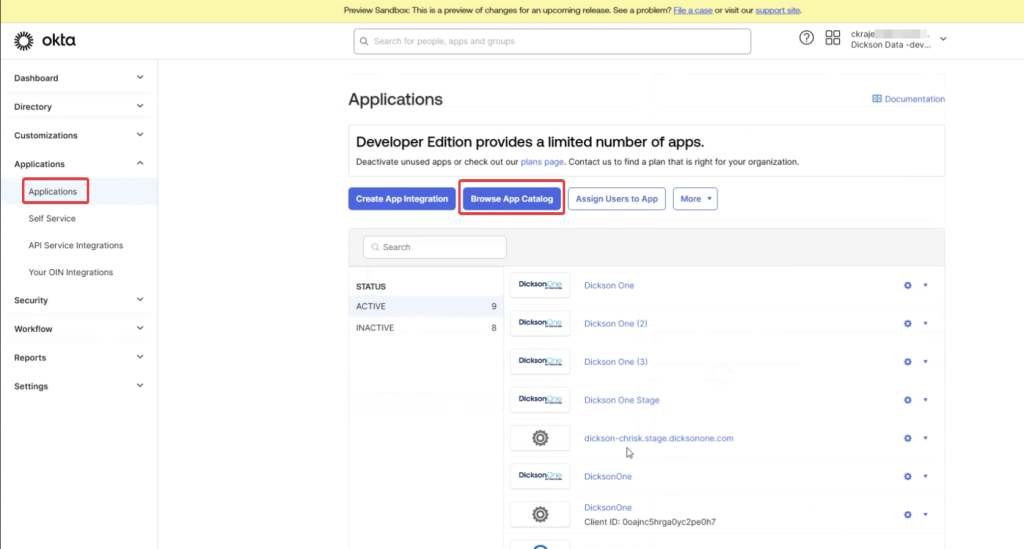
Search for Dickson and select DicksonOne

Select Add Integration
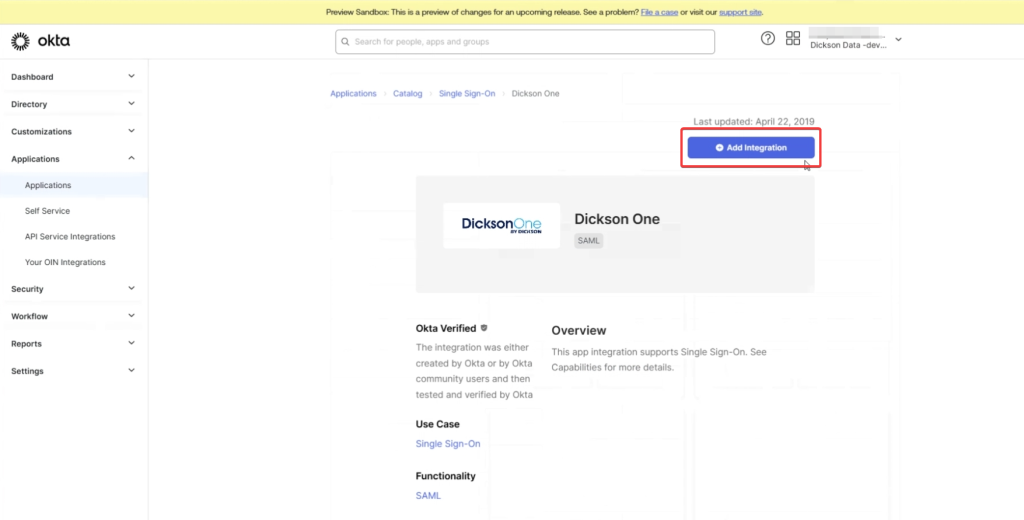
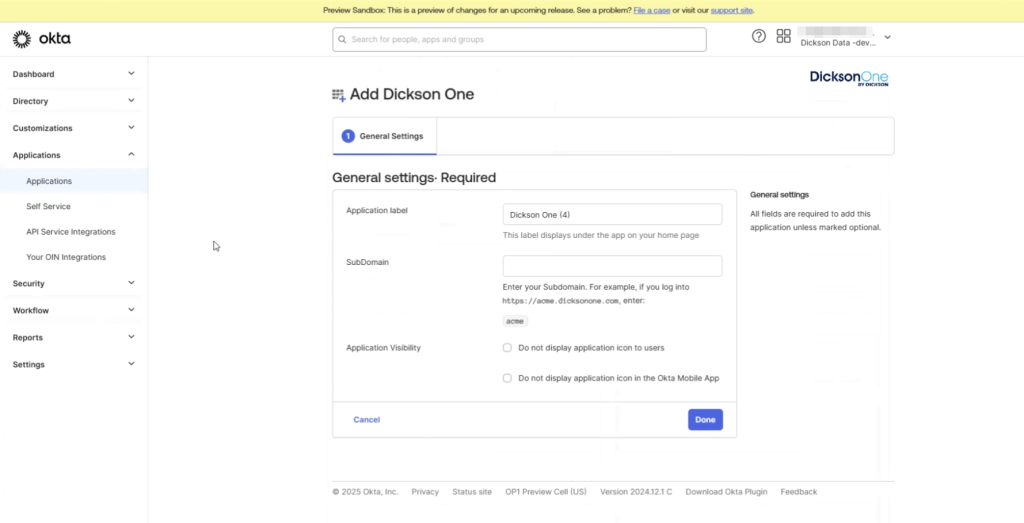
Enter in your SubDomain (reach out to Dickson Support for Subdomain) and Label (can be any name)
Select the Sign on Tab and then View SAML set up instructions for full guide.