



Dickson Support Database
Export the Account Data
About Exporting the Account Data #
- This feature is limited to Account Owners only, though other users are able to create exports
- This feature allows the Account Owner to create an export that will include all devices in the entire account versus having to create an export for each device
How to Export Data #
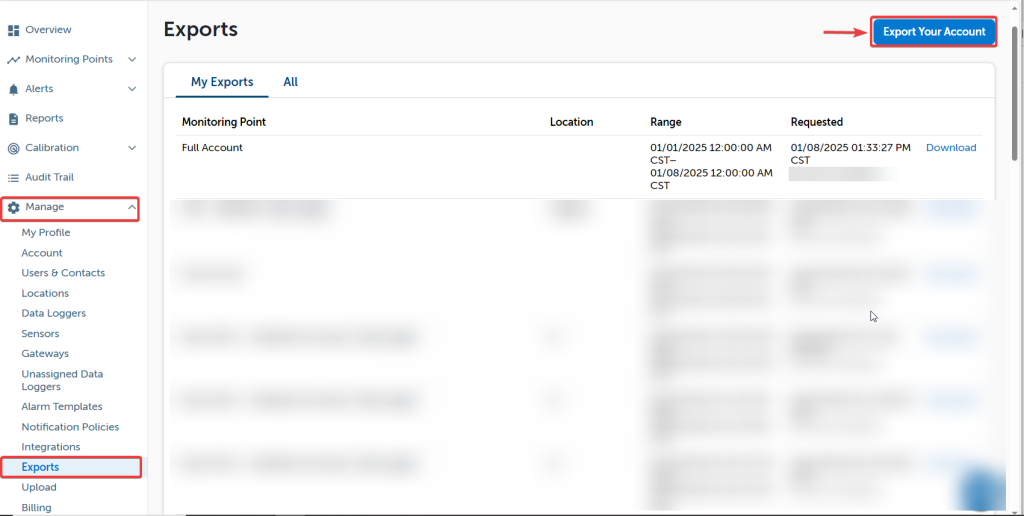
To export data from all devices on your DicksonOne account, go to Manage > Exports
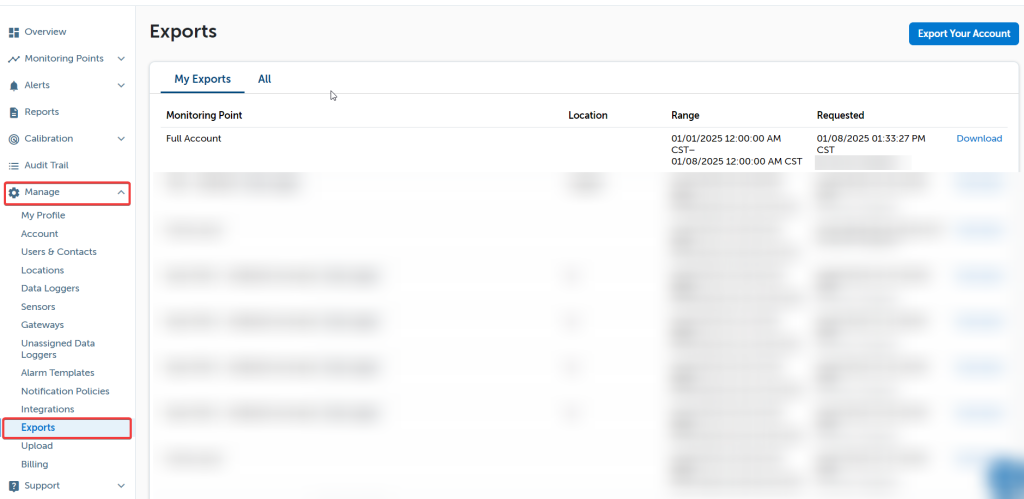
Click Export Your Account at the top right of the page
To export all data collected from your account, leave the Starts at and Ends at fields blank and click Export.
To set a date range for your data export, use the calendar and slider tools that will appear when you click on the date fields. After you have set the start and end date for your export, click Export.
You will receive an email from no*****@********ne.com with a .zip file attached. Inside the file will be an excel spreadsheet with the data you exported.
Depending on the number of loggers and how much data each one has, the email may take some time to arrive. If you do not receive the file, add no*****@********ne.com to you approved senders list.
You may also want: Export Device Data