


Dickson Support Database
Setting up SSO on Azure/Entra for DicksonOne
Ensure SSO is enabled.
- Access Enterprise Applications

- Click New Application

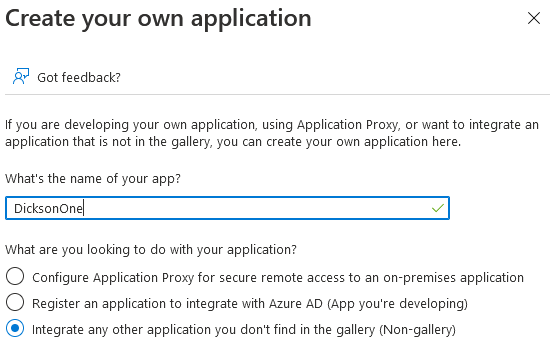
- Click Create your Own Application

- Select integrate any other application you don’t find in the gallery (Non-gallery)
- Assign the Users to your application that have also been added to DicksonOne. They must be added both with matching First name, Last Name, and Email address.

6. Click on Set up sing sign on
- Select SAML

- DicksonOne offers the users their Metadata file located on the SSO Config page. When signed into DicksonOne as an Administrator go to Manage > Account > SSO Config. You will see your Metadata URL. Download the metadata file.

- In Azure click on Upload Metadata file, select your file and click save. The optional URLs may be left blank. Click Save.

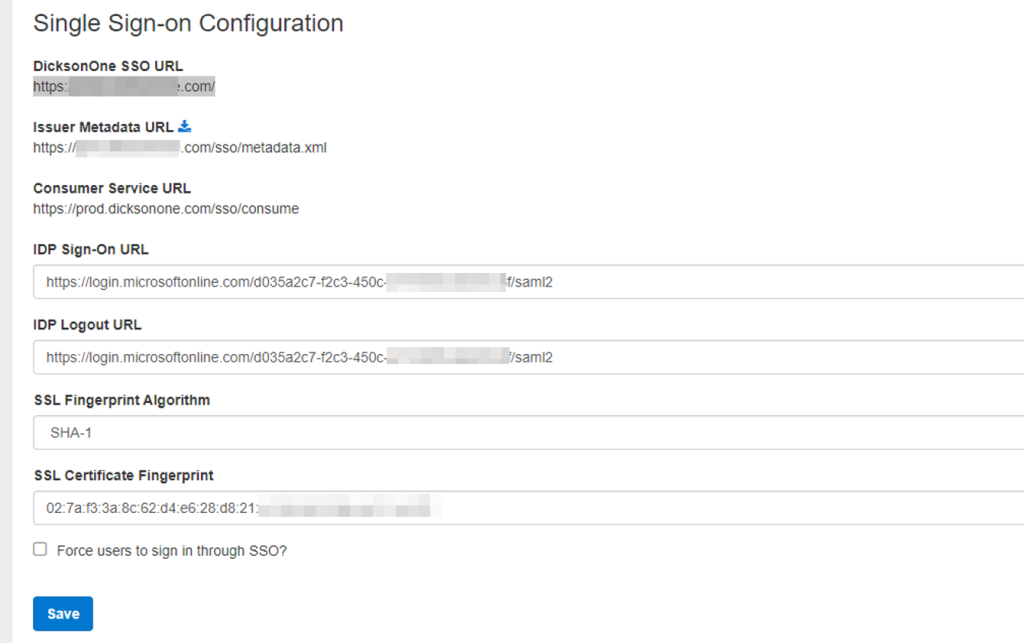
- With an administrative user setup DicksonOne SSO Configuration Page. Manage > Account > SSO Config .
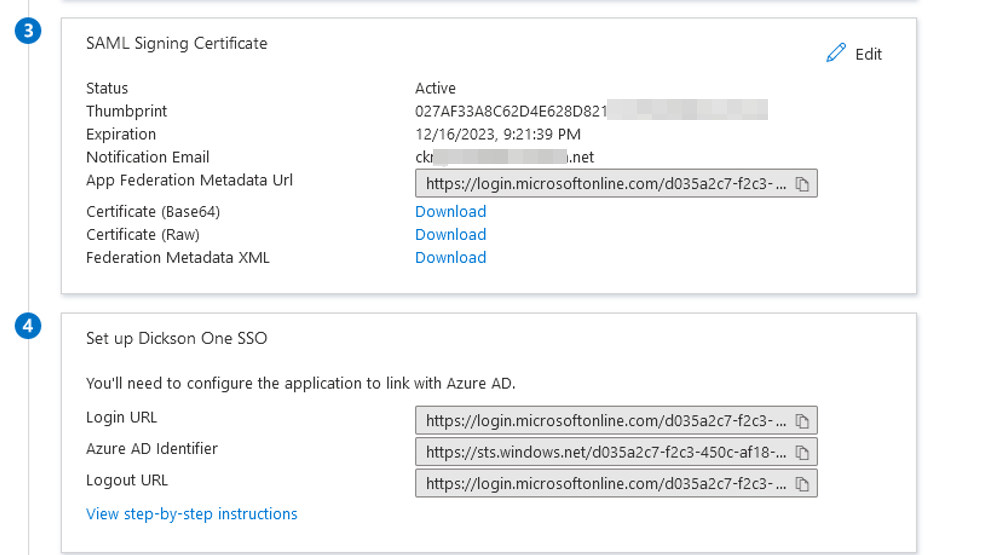
The links can be found in Azure.
- IDP Sign-On URL –
- This URL can be found under Login URL in Azure
- IDP Logout URL –
- This URL can be found under the Logout URL in Azure
- SSL Fingerprint Algorithm
- SHA-128
- SSL Certficate Fingerprint
- The fingerprint can be obtained from Azure. Section 3 in Azure shows the thumbprint. Copy and paste it into DicksonOne SSO configuration page. Click Save.
- You should now be able to sign in using your DicksonOne SSO URL