



Dickson Support Database
Create a Report
About Creating a Report #
- DicksonOne allows you to create various reports for different purposes that can be useful as part of your SOPs or for Audit purposes.
- The benefit of DicksonOne reports is that they are delivered as PDF, and are 21 CFR compliant.
- DicksonOne reports can be automated so that they are emailed daily, weekly and or monthly.
- Historical data reports can be created using the frequency option “Once”. NOTE: Do not select Daily Summary when creating a Once (historical data) Device and Excursions report. The “Once” option will not not appear as an option under “Frequency”.
How to Create a Report #
Create the Report: #
Go to DicksonOne.com > Reports
- Click +Create a New Report

- Select a report type from the drown-down options
- Optional to check the boxes to Include daily summary and or Add signature line
- Click Save and continue
Step 1:

Step 2 & 3:

Select Devices: #
You can select a Device(s) and or Locations(s)
- Select the Device(s) and or Location(s) you wish to report data on
- Click Save and continue

Selecting a Location vs. Device
When a device or multiple devices are selected, the report will only contain the selected devices. If a location(s) is selected, the report will include any additional devices that are added in the future on future reports.
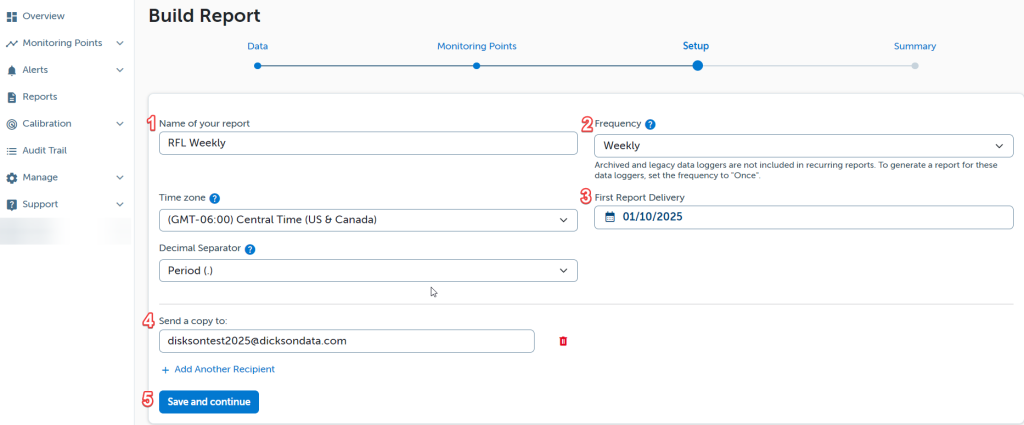
Report Setup: #
In this section, determine the frequency for how often the report should be delivered
- Provide a name for the report
- Determine the Frequency
- Determine when to first sent the first report
- Click +Add Another Recipient if you wish you send the report to others
- Click Save and continue
Verify Setup: #
- Review and/or Edit the information
- Click Save and finish

Reports can be edited as needed. To learn more on how to edit a report, please visit the DicksonOne Knowledge Base.