






Dickson Support Database
Add or Delete a Location
About Adding or Deleting a Location #
- Locations can allow users to control how devices in the account are organized by location and/or application (i.e. Laboratory, Refrigerators, Pharma Co., etc.)
- Locations can allow users to control user permissions that restrict a user to No Access, Read Only, or Manage Access to a Location.
- Locations is laid out in a Parent-Child relationship where the Account name (ie. Pharma Co.) is the super locations and locations can be created as well as adding sub-locations.
How to Add a Location #
Adding a Location: #
Go to DicksonOne.com > Manage > Locations
- Select the Parent Location from the drop-down options on where your location should live
- Provide a Name for the Location (e.g. Cold Room Storage)
- Click Add Location

Note
The amount of locations users can add is infinite. When archiving devices, we recommend creating a location for those devices for easy access on where the devices reside.
Rearrange and Delete Locations: #
- Hover over a location and click with the cursor to drag and move until it is arranged in the desired order
- Click Save Changes
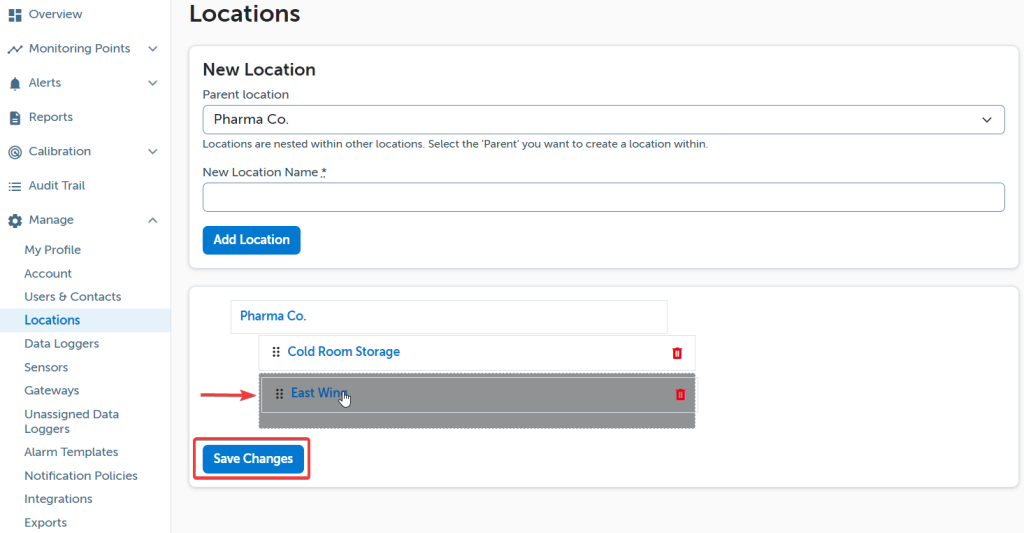
- To delete a location click the trash can and then Save Changes
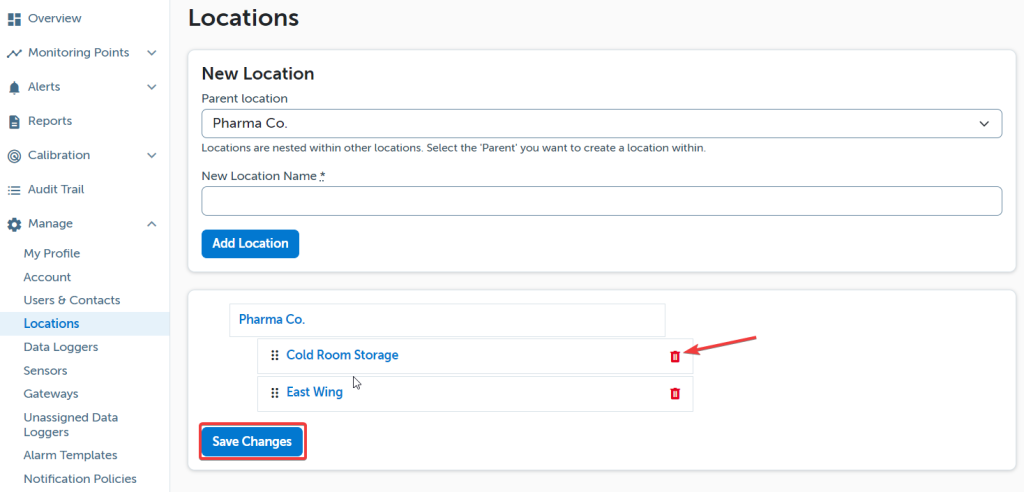
Deleting a Location does NOT delete the devices from the DicksonOne account. Instead, the devices will be moved to the Parent location.
Users can add, delete and rearrange locations in DicksonOne. To learn more about other topics, please visit the DicksonOne Knowledge Base.